HTML and CSS
HTML Learning Outcomes
- Create and design basic web pages
- Modify an HTML document to add or change common elements (e.g., links, tables, lists)
- Use developer tools (e.g., “Inspect Element”) to view page structure
- Write valid HTML with proper document structure:
<!DOCTYPE>, <html>, <head>, <body> - Use CSS to style HTML elements with fonts, colors, spacing, and layout
- Apply inline styles and link external stylesheets
CSS Learning Outcomes
- Override default browser styles using CSS rules
- Use common selectors: tag name,
#id, and.class - Define color using hex codes or RGB values
- Set spacing, borders, fonts, and layout using CSS
- Link an external stylesheet to an HTML file
- Use inline CSS in specific cases
What you See When You Visit a Webpage1
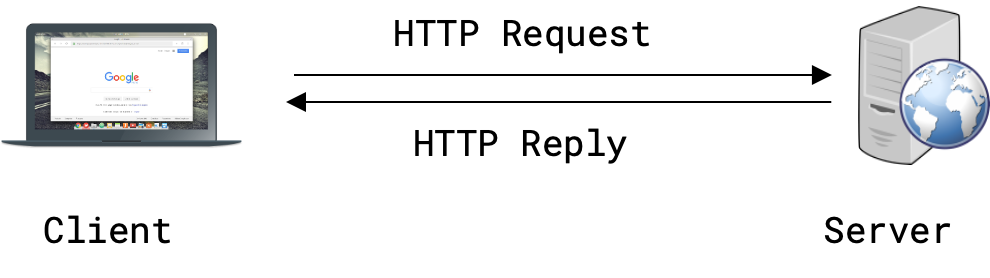
What is Happening When You Visit a Webpage
When you visit a webpage, it looks like you make a request to HTTP and then get a reply. But many things are happening along the way!

Web Transport Security: TLS
TLS (Transport Layer Security) protects your data with end-to-end encryption, meaning no one except the sender and receiver can read or modify the data being sent. For example, if you need to send an email to your bank, the information you’re sending passes through many computers on the Internet…but only the bank can read that final email, even if some of those computers are malicious. The term SSL (secure sockets layer) is the older, deprecated version of TLS…however, in the modern web, even if you see SSL, it probably refers to TLS. SSL should no longer be used anywhere! It’s not secure! TLS is useful for online activity such as:
- Online commerce
- Varying risk between client and server (customer and retailer)
- Web services
- Secure password authentications!
- Session establishment for internet applications (e.g. VoIP)
- VPN connections
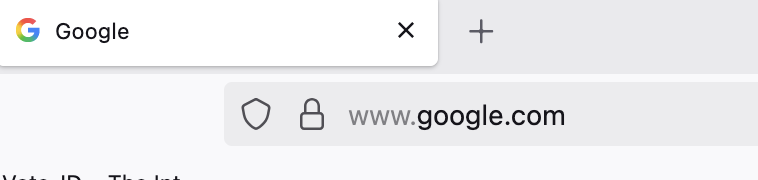
HTTPS (HTTP Secure) is a combination of HTTP and SSL. It’s a secure version of HTTP that encrypts your data to protect it from being stolen. It’s important to always look for the lock icon in the address bar to know that the connection is secure.
URI (Uniform Resource Identifier)
- A path to reach/find a resource.
- You might be familiar with URL (Uniform Resource Locator), but URIs are more general.
- Answers the following questions:
- Which server has it?
- How do I ask?
- How can the server locate the resource?
Latest definition in RFC 3986 (January 2005)
<scheme>:<authority>/<path>?<query>#<fragment>
- scheme: The protocol to use to request the resource
- authority: The entity that controls the interpretation of the rest of the URI. Usually a server name
<username>@<host>:<port>
- path: Usually a hierarchical pathname composed of “/” separated strings
- query: Used to pass non-hierarchical data
- fragment: Used to identify a subsection or subresource of the resource
Examples:
ftp://ftp.ietf.org/rfc/rfc1808.txt
mailto:[email protected]
https://example.com/test/example%3A1.html?%2Falex
https://en.wikipedia.org/wiki/Beep_(sound)#Paging
URI has Reserved Characters, so you can type in things like <space> using %20 (that’s why the example above has the %2F)
URI – Absolute vs. Relative
- URI can specify the absolute location of the resource
https://example.com/test/help.html- Or the URI can specify a location relative to the current resource
- Relative to the current network-path (scheme):
//example.com/example/demo.html
- Relative to the current network-path (scheme):
- Relative to the current authority:
/test/help.html - Relative to the current authority and path:
../../people.html - Context important in all cases
http://localhost:8080/test
JavaScript
JavaScript is a programming language that runs in your browser. It is a very powerful language–JavaScript can arbitrarily modify most HTML or CSS on a webpage. Almost all modern webpages use JavaScript.2 Like CSS, you can also include external JavaScript files in your HTML or code can be embedded into HTML pages directly.
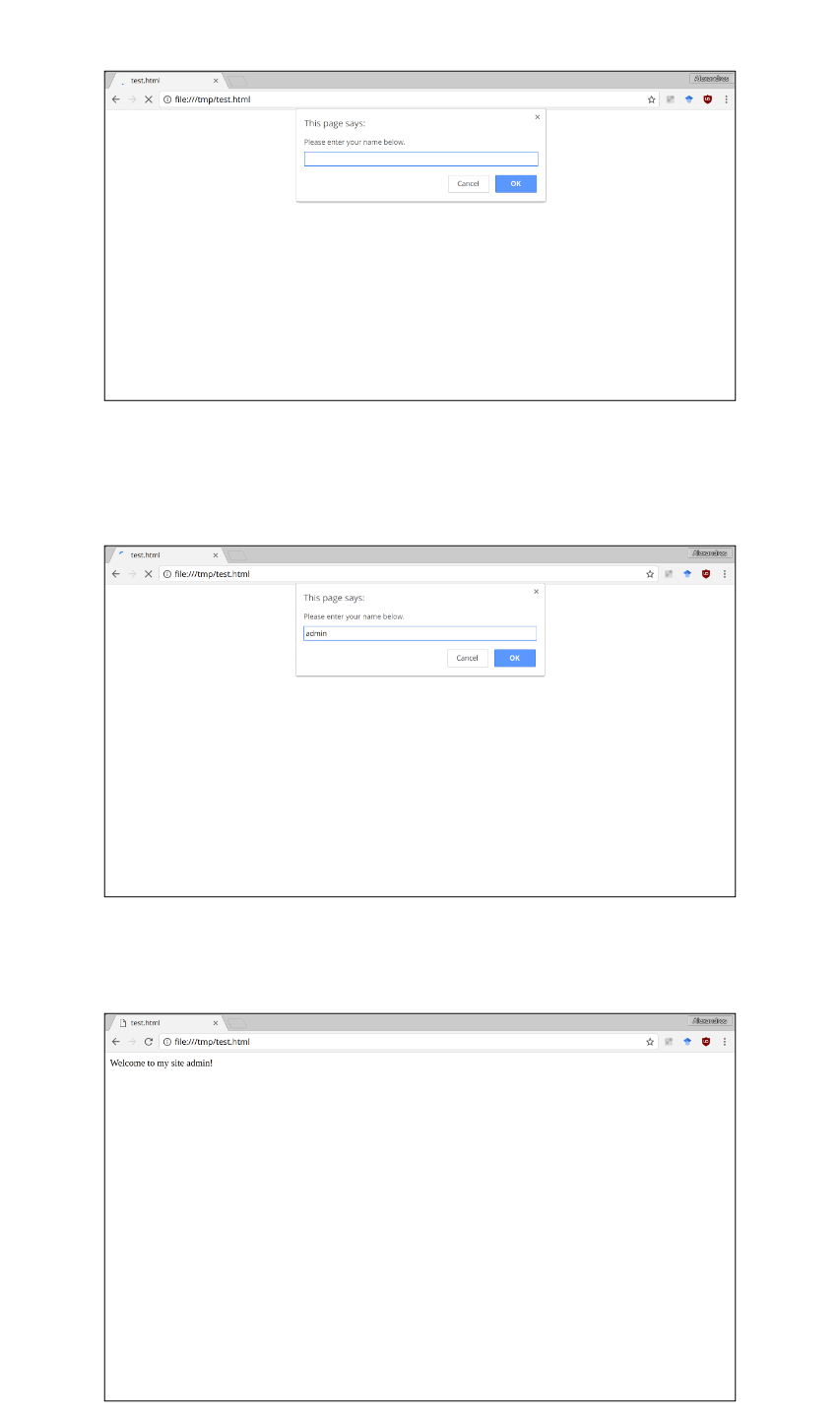
Webpages can include JavaScript in their HTML to use dynamic features like interactive buttons, or having a login (see gif below). When the browser parses this HTML element, it automatically fetches and executes the JavaScript before continuing to parse the rest of the HTML.
Security Concerns in the Browser
Drive-by download
- Web based exploits that target browsers and their plugins
- Usually based on JavaScript
Browser extensions
Browsers may allow users to install a variety of extensions, such as ways to modify the user’s interface, ad blocking, and the custom scripting and styling of web pages. Browser extensions use HTML + JavaScript to modify and enhance the functionality of the browser. Browser extensions have access to a privileged API.

What can a malicious extension do?
- Anything malicious that you can do with JavaScript having access to the visited page, the web requests, the browser’s cookies
- Inject advertisements
- Keylogger (only in the visited page)
- Affiliate fraud
- Steal credentials
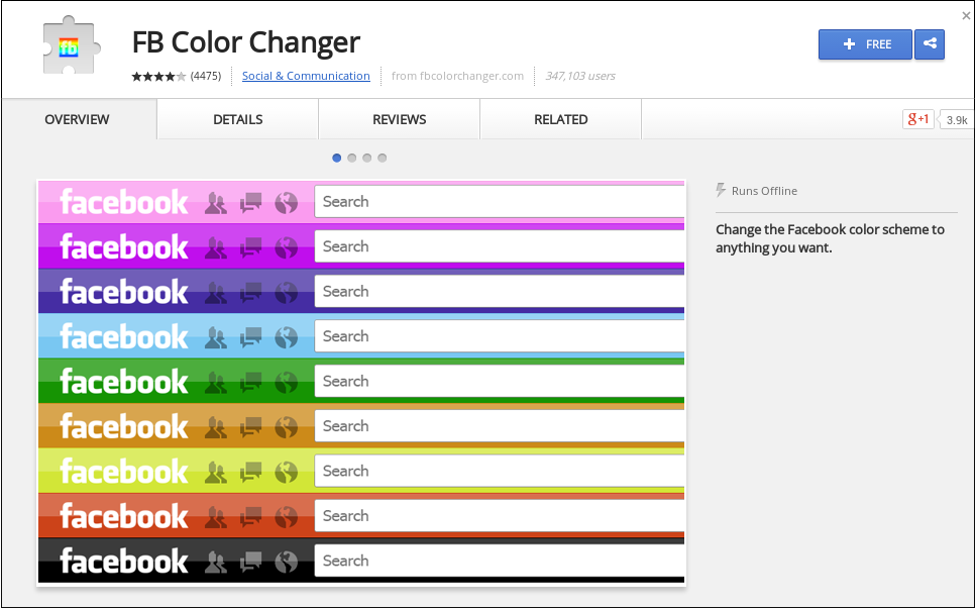
Example: FB Color Changer is a malicious extension.
HTML (Hypertext Markup Language) is a markup language (much like markdown) that defines what content appears on a web page (text, links, tables, etc.). HTML works in your browser with CSS (Cascading Style Sheets) and JavaScript. CSS lets you control styling of HTML elements such as colors, fonts, or borders look in the browser. JavaScript on a webpage allows for dynamic features such as interactive buttons, animations, and dynamic content manipulation. For this class, we’ll look only at static web pages, to keep it simple, so we won’t have interactive elements that come from JavaScript.
The page you are reading this on is full of HTML/CSS/JavaScript code. You can view this code. I use F12 on my Mac to see HTML code. Ctrl+U or Cmd+U may also work. CSS files are written using plain-text editors, just like HTML files. You can include external CSS files in your HTML and link your CSS file! Or you can have in-line CSS within the HTML document. For example, a rule might say: “Display all paragraphs in Arial, size 14px, color blue.”
CSS rules are standardized by the W3C. You can test your code using the CSS Validator.
Resources: MDN HTML Docs, LinkedIn Learning, W3Schools HTML Tutorial
W3Schools has an interactive HTML editor that you can use to practice writing code.

Why Learn HTML/CSS?
When do I read HTML?
- Looking at a GitHub Page or Moodle embed and wondering why something looks wrong
- Inspecting a button or link in the browser to understand how it works
- Writing a README in Markdown or formatting a portfolio site
- Using web-based dashboards, data visualization tools, IoT interfaces, and control systems.
- HTML and CSS teach declarative programming concepts (describing what you want, not how to do it), which is a mindset shift and can help you in future programming classes, even if you’re not using HTML or CSS directly.
We don’t expect you to memorize every tag (just a few so that you can do labs and exams in this class), but you’ll certainly read a lot more HTML than you’re going to write in the future. Knowing what you’re seeing helps with debugging and communication.
HTML and Accessibility
Even if your HTML looks fine in your browser, that doesn’t mean it’s error-free. Problems can appear when you add new features or try a different browser. Worse, screen readers, which visually impaired users rely on, might not understand your page at all if the HTML isn’t written clearly.
Validate your HTML using the W3C HTML Validator. Also check out Mozilla’s accessibility guidelines.
Text Editors
HTML is a markup language written in plain text, meaning you need a plain-text editor to write it. Word processors, like MS Word, write a fancy format like .docx and zip files under the hood with metadata like fonts, padding, styles, and compatibility information. Some free plain-text editors include:
- Visual Studio Code (Recommended. Note: not to be confused with Visual Studio!)
- Notepad++
- BBEdit
- GEdit (for Linux)