
Core Commands and Syntax
Standard Syntax Walkthrough
In UNIX/Linux, you interact with the system by typing commands into a terminal window. The computer shows a command prompt to let you know it’s ready for input. In the University’s Eos system, the computer command prompt is eos$. When you type a command and press Enter, the system tries to execute it and then returns to the prompt. When the system completes the requested action, it will issue another command prompt. Standard command line format is as follows:
eos$ command –options argument_1 argument_2
Each part of a command is separated by a space.
eos$is the prompt and tells you which system you are logged into. IMPORTANT:eos$is NEVER part of the syntax of a command. It is just the prompt for the line. On a different machine, you may see some other line like%. When asked a question about the syntax of a command,eos$should NEVER be part of the answer.commandis the command you wish to use–optionsmodify the behavior of the commandargument_1andargument_2are the parameters of the command (there can be zero or more arguments)
Options and/or arguments can be typed after the basic command to further specify an action, but are not always necessary.
For example, we could have the following command, options, and argument:
ls= the command-al= options~/= argument (your home directory)
Command
The first part, the command, tells the computer what to do.
- For example, if I want to use the
lscommand (which outputs the contents of a certain directory), I would always begin by typing ls.
List of Options
Options modify how a command works. They’re usually single letters that start with a dash (-), like -a or -l. You can combine multiple options with no spaces, like ls -al combines the -a (“all”) and -l (“long”) option for the ls command. My “option list” could be -al or -la (order does not matter).
List of arguments
Arguments tell the command what to work on and are specific to the commands. Arguments are typically paths to files (ref. File Systems), but can be anything.
Commands can take more than one argument. Unlike options, arguments must always be in a specified order. Each argument must be separated by a space (which is why it is important not to include spaces in the names of files and folders).
Putting it together:
eos$ ls -al ~/
You will learn more about the options and arguments for each command in the next few sections of this chapter.
Useful Shortcuts
Save typing time!
The path should be written to the left of the $ for a quick check of where you are.
The UP and DOWN arrow keys scroll through previous commands. The LEFT and RIGHT arrow keys scroll through the current command. BACKSPACE allows you to edit the line you are on.
Command names, parameter names, argument values and file paths can all be completed by pressing the TAB key. Note: If there is more than one possibility for the tab-completion, all will be listed out instead of doing a tab-complete.
Smartphone Analogy
Voice Commands: Call my Dad’s Cell phone (Smartphone Analogy)
- Go to voice commands
- Find and use the right command
- Ex: Call
- Ex: Text (send a message?)
- Find the right person
- Ex: Dad
- Are there options?
- Ex: which number: cell (not required , used to provide extra information)
- Putting it all together: Call Dad’s Cell
Terminal Commands:
List the contents of ~/ with details
- Connect to terminal
- Find and use the right
command:
- Ex:
ls
- Find the right path
- Ex: ~/
- Are there options? • Ex: want details:
-l
(not required, used to provide
extra information) - Putting it all together:
ls -l ~/
Print Working Directory (pwd)
The pwd command shows your current location in the file system by displaying the absolute pathname of your working directory.
eos$ pwd
The terminal will return the absolute path.
eos$ /mnt/ncsudrive/s/ssrahman
Change Directory (cd)
Command:cd
- The
cdcommand changes your current working directory to a specified location. - Advice: use pwd or ls with or after using cd to ensure you’ve done it right.
eos$ cd pathname
Example
Changing from the E115 Course Locker directory to your home directory. (View animation here)
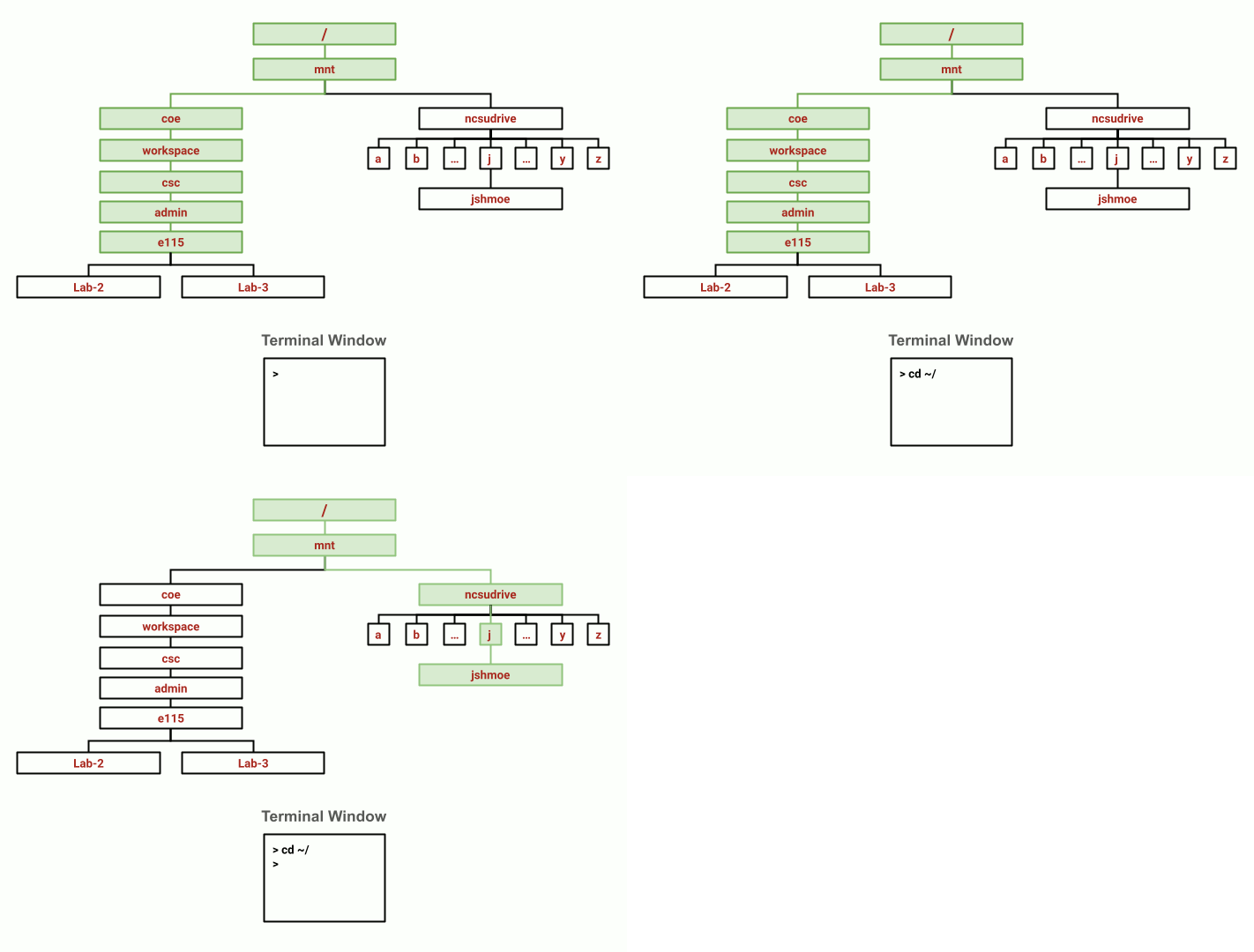
To return to the E115 Course Locker:
eos$ cd /mnt/coe/workspace/csc/admin/e115
List Directory (ls)
List the contents of a directory: ls
The ls command lists the contents of a directory. It’s useful for checking that files are present or confirming a directory’s contents.
- Used to list the contents of a specific directory
- What is the output? the contents of the directory specified, OR of the current directory if nothing is specified
eos$ ls
Or, to list contents of a different directory:
eos$ ls pathname
Common Options:
-l | List contents in long format (includes size, date, owner, permissions, etc.) |
-a | Show all files, including hidden files (those starting with .) |
-al or -la | Combine both options to show all files in long format. Options can be used in any order or used independently of each other. |
Examples
To list the contents of your home directory while you are in it:
eos$ ls
You can also specify another directory by providing a pathname with the ls command.
The contents of the directory will be listed. For example:
MyDocuments MyE115 File.txt
Note: The actual output will vary depending on the directory and the user’s files.
More Examples
I want to list the contents of my HOME directory using a relative path name…
- I am in my home directory, ~/
ls
orls -a
(only if asked for all files)
orls -l(only if asked for info on files)
orls -alorls -la
(only if asked for all files with details)
- I am elsewhere in the file tree
ls ~/
orls -a ~/orls -l ~/orls -al ~/orls -la ~/
Make Directory (mkdir)
Command:mkdir
- Use the make directory (mkdir) command to create a new directory.
- Options:
- The
-poption will create every directory in the pathname, if they don’t already exist. - If you are in the location, you can ignore that part of the syntax
- The terminal window is very literal, so make sure you either specify an exact location or be in that location.
- The
Advice: usepwdor ls with or after using cd to ensure you’ve done it right.
eos$ mkdir directory_path
eos$ mkdir -p directory_path
Examples
I want to create a directory named MyE115 in my home directory…
- I am in ~/:
mkdir MyE115the terminal is CASE SENSITIVE
do an ls after to ensure proper creation - I am elsewhere in the file tree:
mkdir ~/MyE115the terminal is CASE SENSITIVE and there is NO SPACE between the ~/ and the name of the directory
do an ls ~/ after to ensure proper creation
To create a directory called MyE115 in your home directory:
If you are in your home directory:
eos$ mkdir MyE115
If you are not in your home directory:
eos$ mkdir ~/MyE115
Note: ~/MyE115 is the shortcut for the absolute pathname of the directory you wish to create. The complete absolute pathname is /mnt/ncsudrive/j/jshmoe/MyE115
To create a directory called basic_unix inside the MyE115 Directory
eos$ mkdir ~/MyE115/basic_unix
To create a directory called basic_unix inside the MyE115 Directory, if MyE115 does not exist
eos$ mkdir -p ~/MyE115/basic_unix
The -p option creates MyE115 as well as basic_unix
After creating a directory, you can change the directory path to the new directory using cd.
Manual pages (man)
Command:man
The entire UNIX manual is available through the terminal window. You can access it by logging into any UNIX computer and typing
eos$ man commandname
where man comes from manual. For example, typing man ls will bring up the online help with the ls command.
These pages contain documentation on the UNIX commands, including how they are executed, associated options, and what the command does.
If you receive “No manual entry for commandname”, it means that the command you typed is not recognized on that system.
To scroll in the document, use the UP and DOWN arrow keys, use q to exit the manual.
How to read a manual page
Let’s say I need to read about the grep command. I type in:
eos$ man grep
and this page pops up:
GREP(1)                                                                GREP(1)


NAME
       grep, egrep, fgrep - print lines matching a pattern

SYNOPSIS
       grep [OPTIONS] PATTERN [FILE...]
       grep [OPTIONS] [-e PATTERN | -f FILE] [FILE...]

DESCRIPTION
       grep  searches the named input FILEs (or standard input if no files are
       named, or if a single hyphen-minus (-) is given as file name) for lines
       containing  a  match to the given PATTERN.  By default, grep prints the
       matching lines.

       In addition, two variant programs egrep and fgrep are available.  egrep
       is  the  same  as  grep -E.   fgrep  is  the  same  as grep -F.  Direct
       invocation as either egrep or fgrep is deprecated, but is  provided  to
       allow historical applications that rely on them to run unmodified.

OPTIONS
   Generic Program Information
       --help Print  a  usage  message  briefly summarizing these command-line
              options and the bug-reporting address, then exit.

:
Figure 1: Part of the manual page for grep
The SYNOPSIS section gives an overview of the syntax of the command. Underlined words are parameters where arguments, such as the file name, go. [Bracketed] words are optional. DO NOT use brackets when executing the command.
Note that in some cases the order of the arguments is significant.
Create a Log File (script)
Command:script
Use the script command to create a log file of every command executed, and its output, during that terminal session.
The script command makes a typescript of terminal session, which just means it logs everything you type. This is useful when you have an error in your commands somewhere, and need to review the file (or for homework!).
You can also use something called scripting to automate repetitive tasks, which is not the same thing as the script command.
To begin recording the log file use the following command:
eos$ script -f logfilename
The option -f is required for this course. It forces the script to start recording immediately.
To close the log file, type exit into the terminal window (this is true regardless of which options are used). For this course, DO NOT exit a log file until instructed.
- Options:
-a: append. Lets you append to a log file-f: flushed. Writes to the file in real time. You should always use this option in E 115
- Note: To end a log file, you must type “exit”.
- The log file will create wherever you were when you executed the command.
- Tell you the file has started. Upon exit, will tell you the file is finished.
WHEN YOU ARE DONE: exit your log file and then always type logout to end your terminal session.
Example
In this example, I create a file called log.txt (the file can be named differently!), pwd, then exit.
[ahaque3@engr-ras-203 ~]$ script -f log.txt
Script started, file is log.txt
[ahaque3@engr-ras-203 ~]$ pwd
/mnt/ncsudrive/a/ahaque3
[ahaque3@engr-ras-203 ~]$ exit
exit
Script done, file is log.txt
[ahaque3@engr-ras-203 ~]$
If you then want to view your script file, use cat. It will print out what the output on the terminal was:
[ahaque3@engr-ras-203 ~]$ cat log.txt
Script started on 2025-07-11 12:17:58-04:00
[ahaque3@engr-ras-203 ~]$ pwd
/mnt/ncsudrive/a/ahaque3
[ahaque3@engr-ras-203 ~]$ exit
exit

Script done on 2025-07-11 12:18:03-04:00
[ahaque3@engr-ras-203 ~]$
Exercises
- What does the command
lsdo when used with the-loption? - What happens if you use two options at the same time, such as
ls -l -h? - The command
ls -Rlists the contents of directories recursively, which means all subdirectories at each level are listed. The commandls -tlists things by time of last change, with most recently changed files or directories first.- In what order does
ls -R -tdisplay things? Hint:ls -luses a long listing format to view timestamps.
- In what order does
- which of the following commands could
ssrahmanuse to navigate to home directory, which is/mnt/ncsudrive/s/ssrahman?cd .cd /cd /home/ssrahmancd ../..cd ~cd homecd ~/data/..cdcd ..cd ../.