
GitHub Web Interface
GitHub is a web-based platform for storing code, managing versions, and even hosting websites (via GitHub Pages).
If you want to use the GitHub Enterprise provided for free through NC State, follow the instructions on the knowledge base article. Then log in to see your existing repos and recent activity. Note that not all features that you might have through a personal account may be available.
To create a new repo, click “New”. Or if this is your first repository (congrats!), click “Create Repository”.
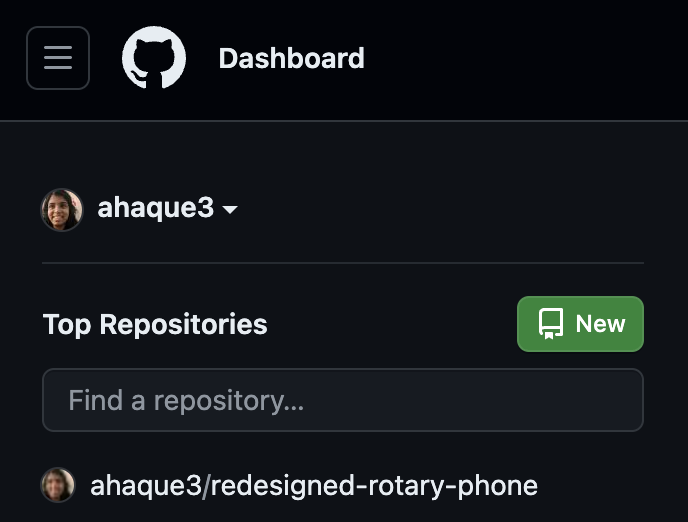
- Once clicked, you should be redirected to a new page to create a new repository
- From the “Choose an owner” dropdown, choose your username as owner
-
- Name your repository (required) and add a description (optional, but recommended for public repos).
-
- Choose public or private visibility. Making a repository private means that it is hidden to anyone that you do not explicitly give access to. (Note that the NC State Enterprise GitHub account may not have the option to make the repository public.)
- Select “Add a README file” unless you’re importing an existing project.
- For now, we’ll skip having you include a
.gitignoreand License. - Click on “Create Repository” at the end of the page.


Once you click the “Create Repository” button, you will see the following screen:
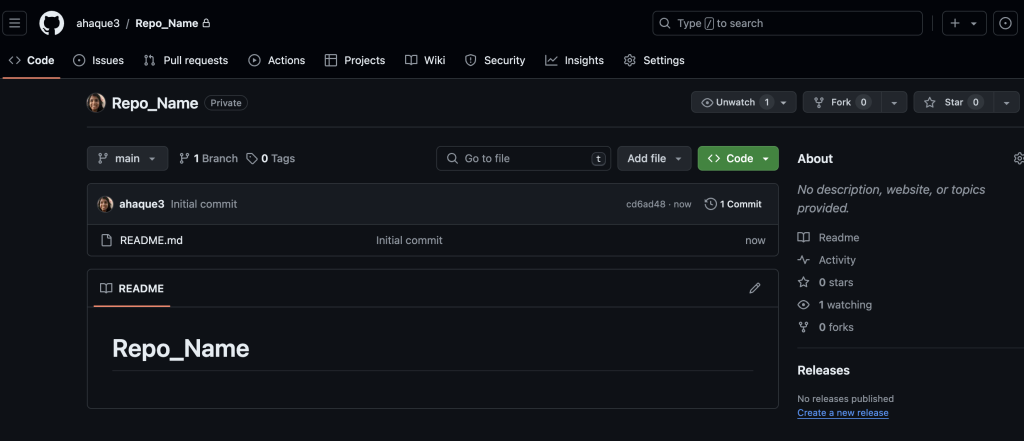
Once created, your repo allows you to:
- Upload files
- Create new files
- Clone or download the repo for local edits
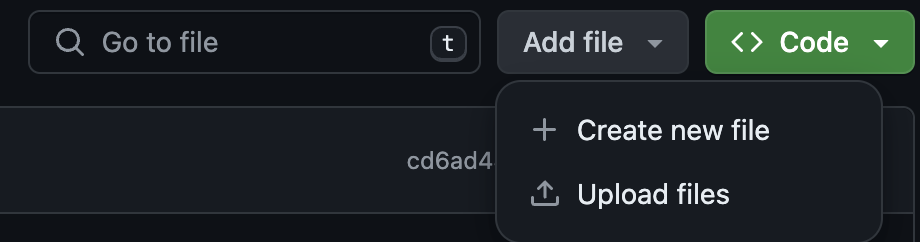
If you choose to “Create new file”, you will see the following screen:

Create your file, name it (with an extension if needed), and then you can commit it by clicking the green “Commit changes” button, which pops up this window:
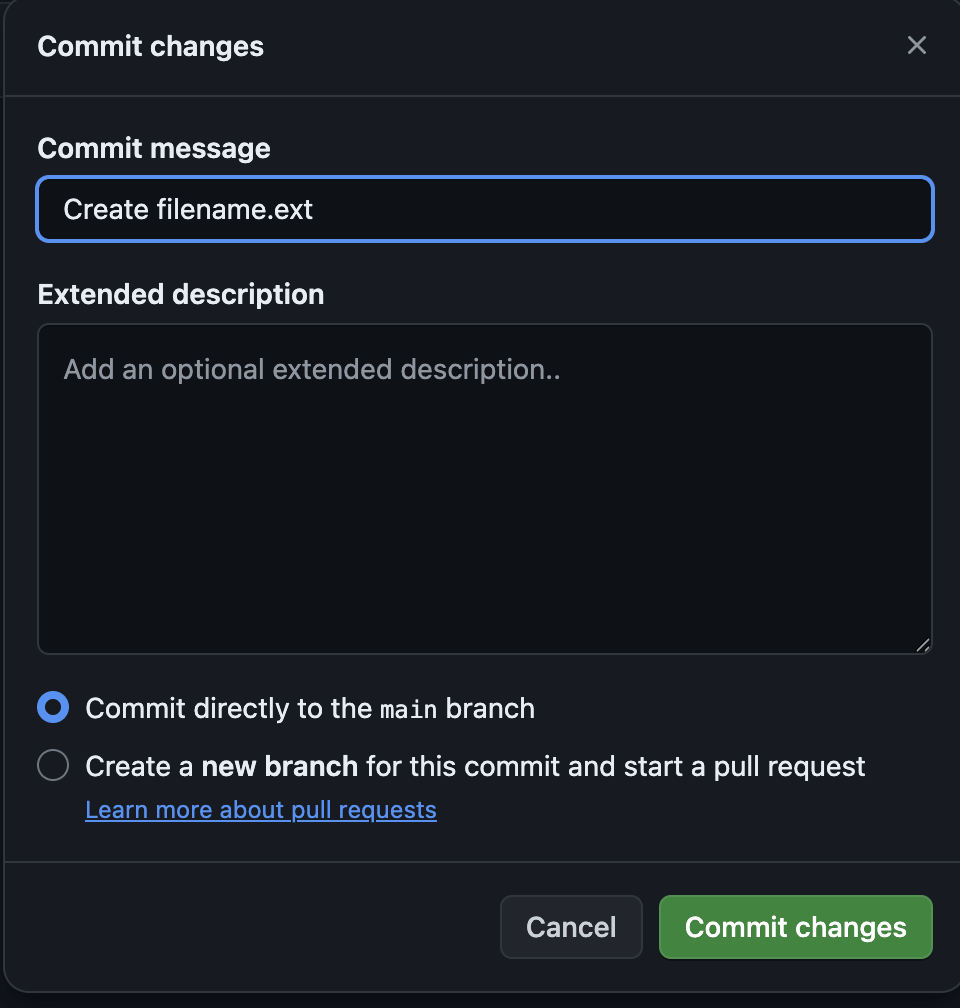
When creating a file:
- Add a commit message describing your changes. This message is a description about what updates were made to the file since the last time it was edited. You can also include an extended description.
- Click “Commit changes” to create/update the file on GitHub! 1
You may keep the file blank to create it, in case you just need the file in the repo.