
File Systems and NCSU File system
Learning Outcomes
- Navigate and operate UNIX-based command-line operations.
- Send and receive e-mail and use other campus computing services
- Identify general features in networking, hardware and operating systems
Chapter Learning Outcomes
- Identify the role of a node (e.g., root, parent, child, leaf) within a file system hierarchy
- Identify the full path to a file or directory based on its position in a file tree diagram
- Explain the rules behind file names and extensions across operating systems
- Memorize and use path names in the NFS system, specifically for E 115.
- Access the NFS file system using campus-installed software (Terminal, Filezilla, or via mounting, as appropriate)
- Navigate a local file system via terminal and file explorer, including mounted drives and using file transfer protocol systems.
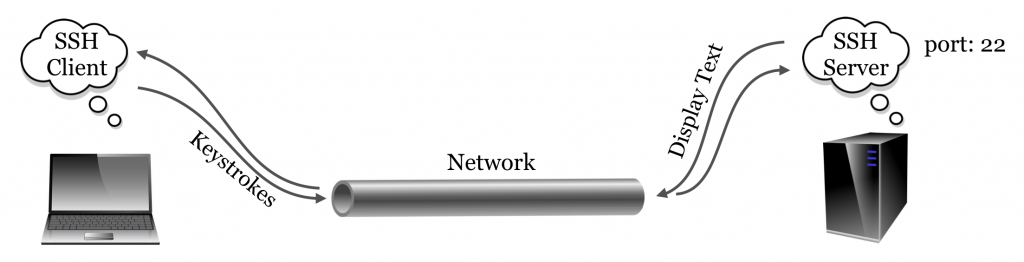
Sometimes you want to access a remote computer, which you’ll do via SSH. In E 115, the remote system we access is Eos (named for the Greek goddess of the dawn; MIT’s system is called Athena). SSH is a program/protocol to allow us to type on our own computers, let the results take place on a remote computer, and show us the results — this means you can run code on a remote computer! This requires an Internet connection, as SSH permits secure login connections and file transfer over the Internet or other untrusted networks. SSH has the ability to “tunnel” information and applications through a host. You send your information to a host, which forwards it to its actual destination.
Start by getting accessing to Eos using SSH, as the instructions below show you, for Windows, and Linux/Mac.
Accessing NFS through SSH
This page explains Windows, Mac, and Linux access to Eos below.
Video: Connecting to Remote Terminal, Windows or Mac→
Windows Access
To access NFS from Windows, you must first download an application called PuTTy, or use an alternate terminal application (PowerShell 7, or set up through VS Code or Git Bash — there are a variety of choices of application, you just need to be able to ssh). The following instructions are for PuTTY.
- Download the application (most users will need 64-bit x86 .exe, but check your own computer).
- You can download from the official website or the Microsoft Store.
- Once downloaded, to open, double click on the putty.exe icon.
Common errors and their fixes associated with PuTTy are located here.
PuTTY

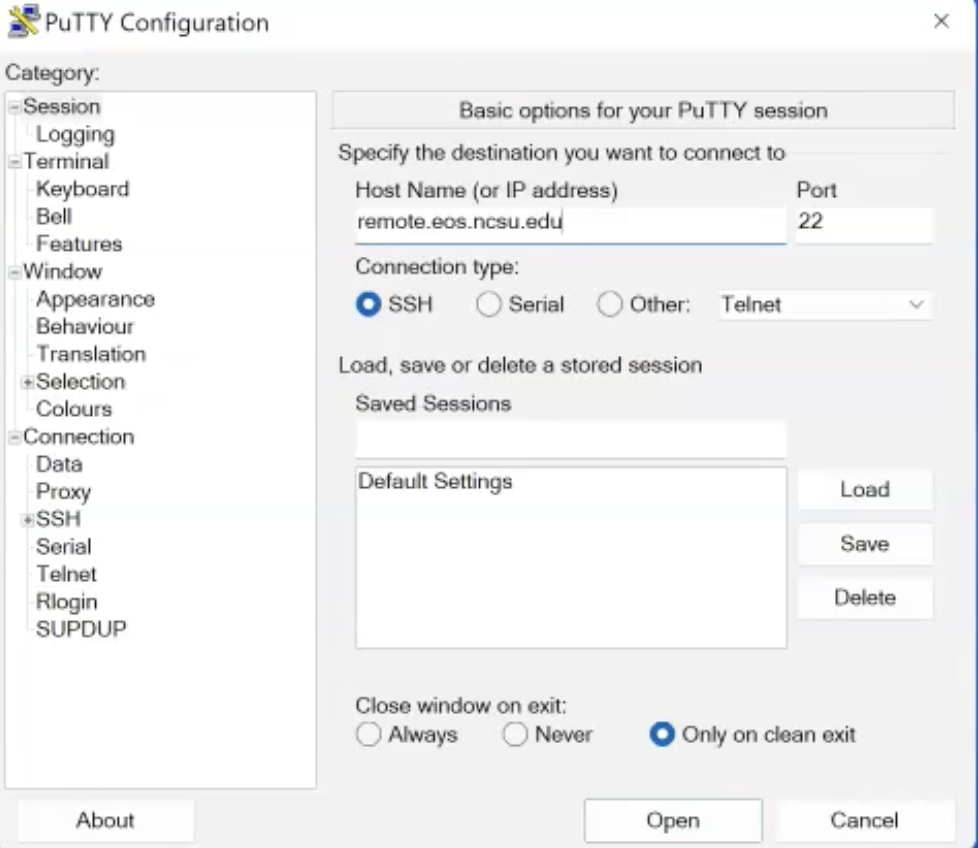
- Type the following for Host Name:
remote.eos.ncsu.edu. Alternatively, you can try remote.csc.ncsu.edu. - Use Port 22
- You can name this connection under Saved Sessions (give it any name you like) so that you don’t have to type it each time.
- Click “Open”
- Login using your Unity ID – Hit “Enter”
- Type your password
- ***Note: it will look like you are not typing, but this is just a security feature
- Hit “Enter”
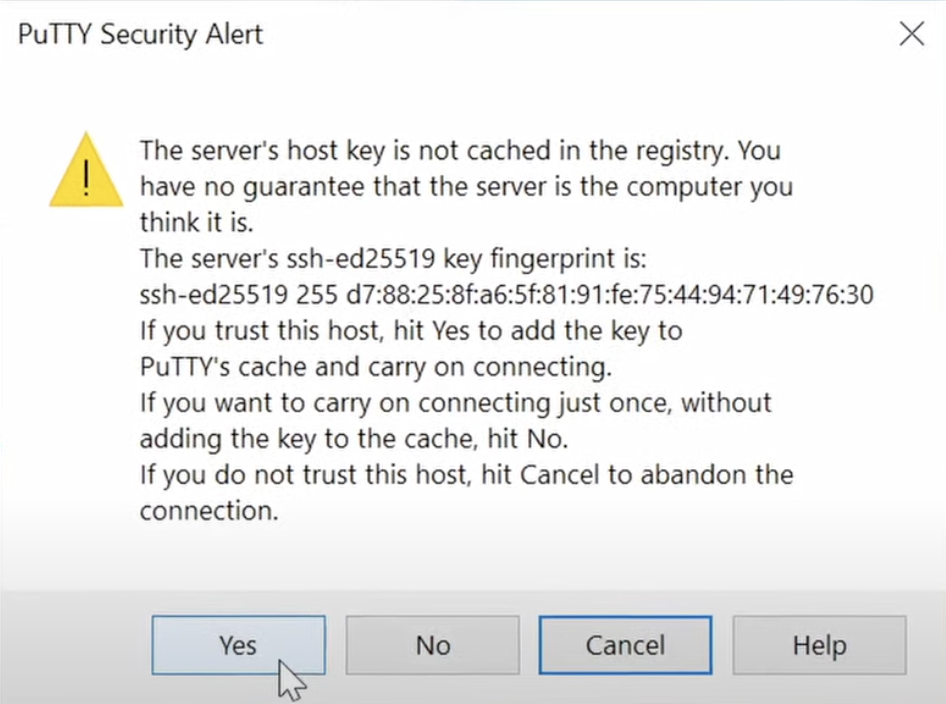
If you have connected with this domain before and get an error saying “Warning – Potential Security Breach,” there is not an issue, just hit “OK”. The first time you connect, you may get a security alert, asking you if you trust the connection. You should say yes.
Linux/Mac Access
Mac/Linux: Open Terminal and:
- Type the following:
ssh [email protected]- Make sure you use your Unity ID
- Type your password
- ***Note: it will look like you are not typing, but this is just a security feature
- Hit “Enter”
On Linux, you may use xterm for the Terminal application.
On a Mac, Terminal is found by going to the Finder window and choosing Applications -> Utilities -> Terminal (or Spotlight, search for Terminal).
If you have connected to this domain before and get “WARNING:
REMOTE HOST IDENTIFICATION HAS CHANGED!”, you must run the following command and try again:
ssh-keygen -R remote.eos.ncsu.edu
Exercises
- Practice logging in to and back out of the remote machine Eos.
- Once logged in, type in
man sshto learn the different options (there is a separate section in this textbook to explain themancommand). - PuTTY practice, if you are using it: A program called
telnetallows us to connect to any server on any port and attempt to communicate with it (which requires that we know the correct messages to send to the server for the protocol). Try connecting withtelnetto port80ofgoogle.comby using the “Telnet” radio button in PuTTY if on Windows.